
Desktop (Windows)
Beta Sender Pro: a tour of the screen
A quick tour of the Beta Sender Pro window on Windows: the toolbar, the panels, and the Send Now and Schedule Send buttons.
Updated
This is a quick tour of the Beta Sender Pro window on Windows.
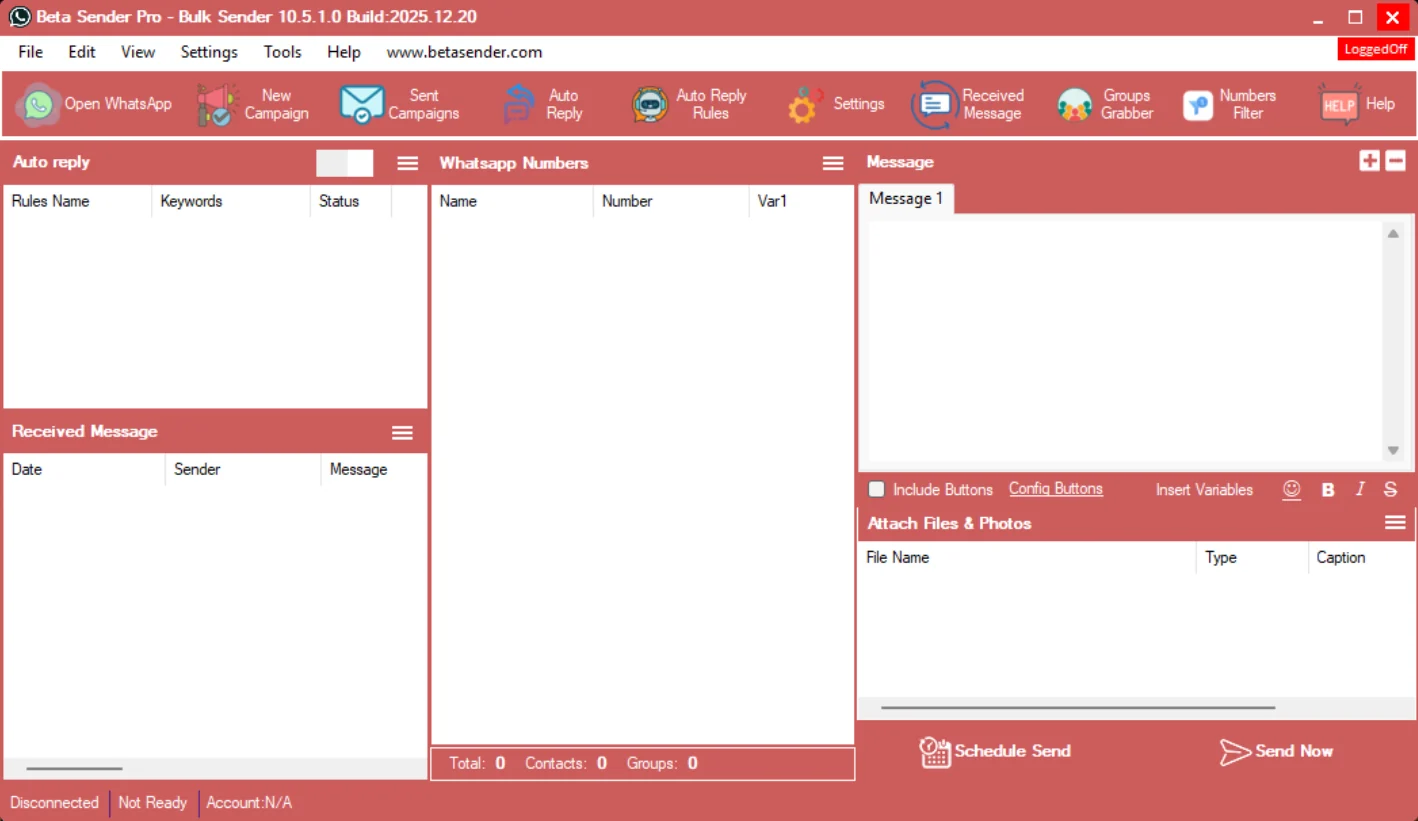
The menu and toolbar
The menu bar has File, Edit, View, Settings, Tools and Help. Below it, the toolbar gives you one-click access to:
- Open WhatsApp: starts the WhatsApp connection. The status bar at the bottom shows whether you are connected.
- New Campaign and Sent Campaigns: create a campaign, and look at the ones you have sent.
- Auto Reply and Auto Reply Rules: switch auto reply on and set your keyword rules.
- Settings: the program settings.
- Received Message: the messages that come in.
- Groups Grabber: pull contacts from your WhatsApp groups.
- Numbers Filter: filter a list of numbers before you send.
- Help: help for the software.
The main panels
- Auto reply (top left): a table of rules with the rule name, keywords and status, and a switch to turn auto reply on or off.
- Received Message (bottom left): the date, sender and text of incoming messages.
- WhatsApp Numbers (middle): your contact list, with Name, Number and Var1 columns. The totals at the bottom show how many numbers, contacts and groups are loaded.
- Message (top right): write your message. Use the + and - buttons to add or remove messages, tick Include Buttons and use Config Buttons to add buttons, Insert Variables to personalise, and the small toolbar for emoji, bold, italic and strikethrough.
- Attach Files & Photos (bottom right): add files and photos, each with a type and a caption.
Sending
At the bottom right, Send Now starts the campaign straight away and Schedule Send sets it up for later.
The status bar
The bar at the very bottom shows your connection state, whether the software is ready, and the WhatsApp account in use.
Next: personalise messages with variables and the safe sending checklist.